Multi-Track Editing
Work with multiple video and audio tracks, linked clips, and track controls.
Unlimited tracks for layering video, audio, text, and shapes. Tracks are created in pairs (video + audio). Linked clips keep video and audio in sync.
Adding tracks
Click Add Track in the track header area. New video track appears above existing ones, matching audio track appears below.
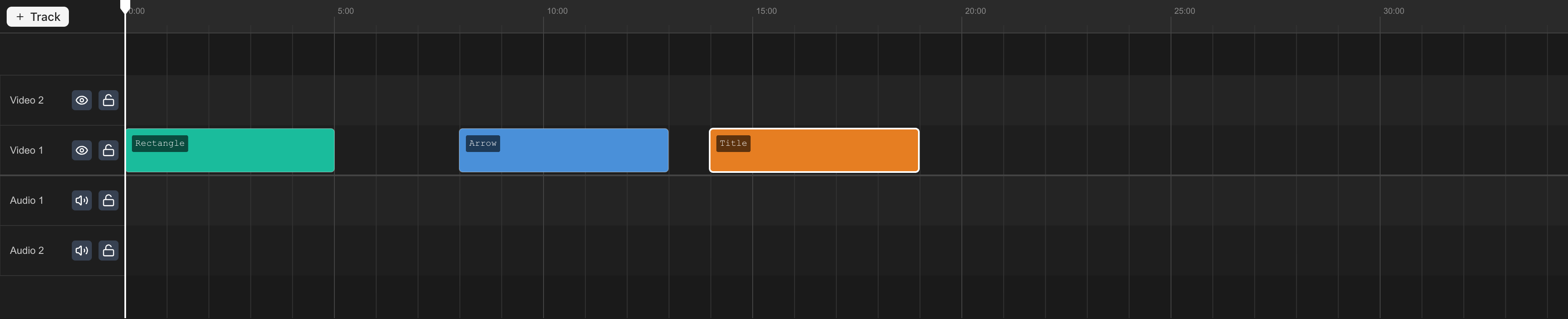
Track controls
| Control | Effect |
|---|---|
| Mute | Hide the video track or silence the audio track |
| Lock | Prevent all modifications to clips on this track |
Locked tracks block move, trim, split, and delete operations.
Removing tracks
Right-click a track header to delete it. Both tracks in the pair are deleted. Confirmation dialog appears if the track contains clips.
The last track pair cannot be deleted.
Stacking order
Video tracks stack bottom to top — higher tracks render on top. This determines visual layering in preview and export.
Linked clips
Importing a video file with audio creates two linked clips: video on a video track, audio on the matching audio track.
Linked behavior
| Operation | Behavior |
|---|---|
| Move | Both clips move together |
| Split | Both clips split at the same point |
| Delete | Deleting one deletes the other |
| Trim | Both clips trim together |
Unlinking
Right-click a linked clip and choose Unlink. After unlinking, each clip operates independently.
Moving clips between tracks
Drag a clip up or down. Linked clips move to their respective track types.