Basics
Timeline Overview
Understand the timeline, tracks, and clips in Tooscut.
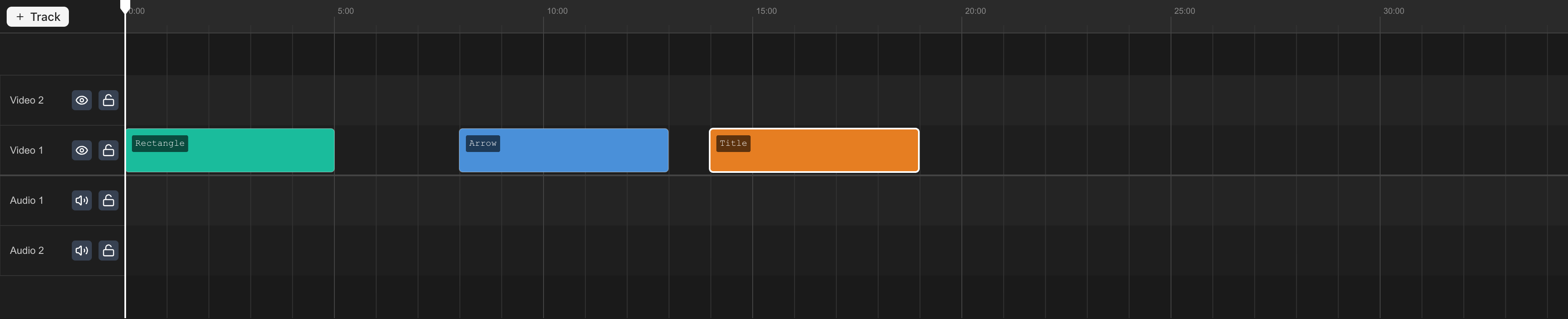
Layout
- Ruler — Time markers across the top. Click to move the playhead. Also shows named markers and in/out points.
- Track headers — Track names, mute, and lock controls on the left.
- Clip area — Clips as colored blocks.
- Playhead — Vertical line at the current time.
Tracks
- Video tracks — Hold video, image, text, and shape clips. Higher tracks render on top.
- Audio tracks — Hold audio clips. Each video track has a paired audio track.
Tracks are always created in pairs (video + audio). See Multi-Track Editing for more.
Clips
Each clip has a start time, duration, and in point (where playback begins within the source media). Video clips show thumbnails; audio clips show waveforms.
Selecting clips
- Click to select. Shift-click to toggle.
- ⌘A — Select all.
- Escape — Deselect all.
Moving clips
Drag left/right to reposition in time. Drag up/down to change tracks. Clips snap to the playhead and other clip edges.
Zoom and scroll
- ⌘+ / ⌘- — Zoom in/out.
- Scroll horizontally to move through time.
- Scroll vertically to see more tracks.