Importing Assets
How to import video, audio, image, and LUT files into your Tooscut project.
Import with the file picker
⌘I or File > Import Media opens the system file picker. Select one or more files. They read directly from disk via the File System Access API — nothing is uploaded.
Drag and drop
Drag files from your file manager into the Tooscut window. They appear in the asset panel.
Supported file types
| Type | Formats |
|---|---|
| Video | MP4, WebM, MOV, and other browser-supported formats |
| Audio | MP3, WAV, AAC, OGG |
| Image | PNG, JPEG, WebP, GIF |
| LUT | .cube files (3D look-up tables, up to 64³) |
The asset panel
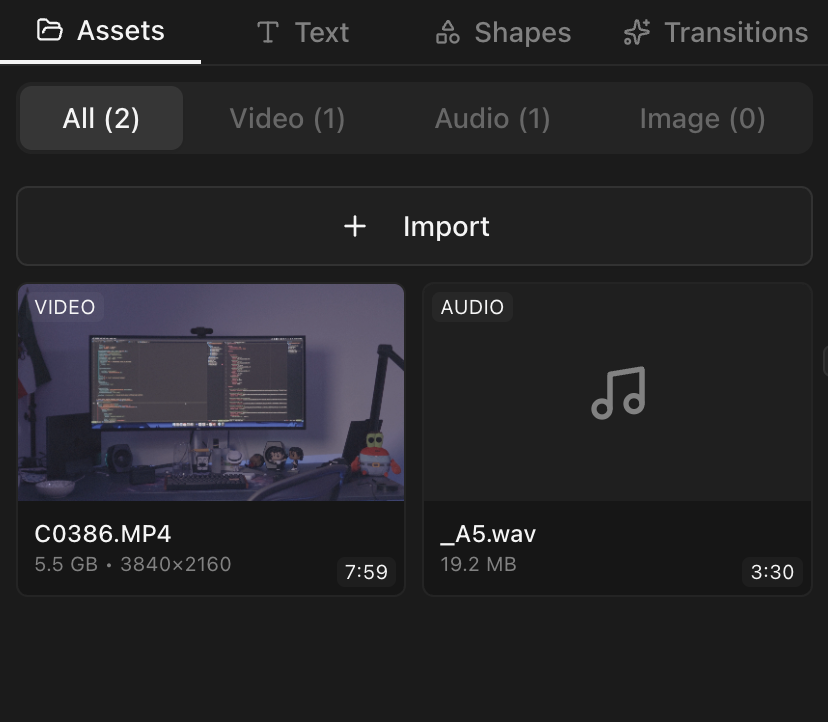
Imported assets show up in the asset panel on the left. Each entry displays a thumbnail, duration (in frames), dimensions, file name, and type.
Adding assets to the timeline
Drag an asset from the panel onto a timeline track to create a clip.
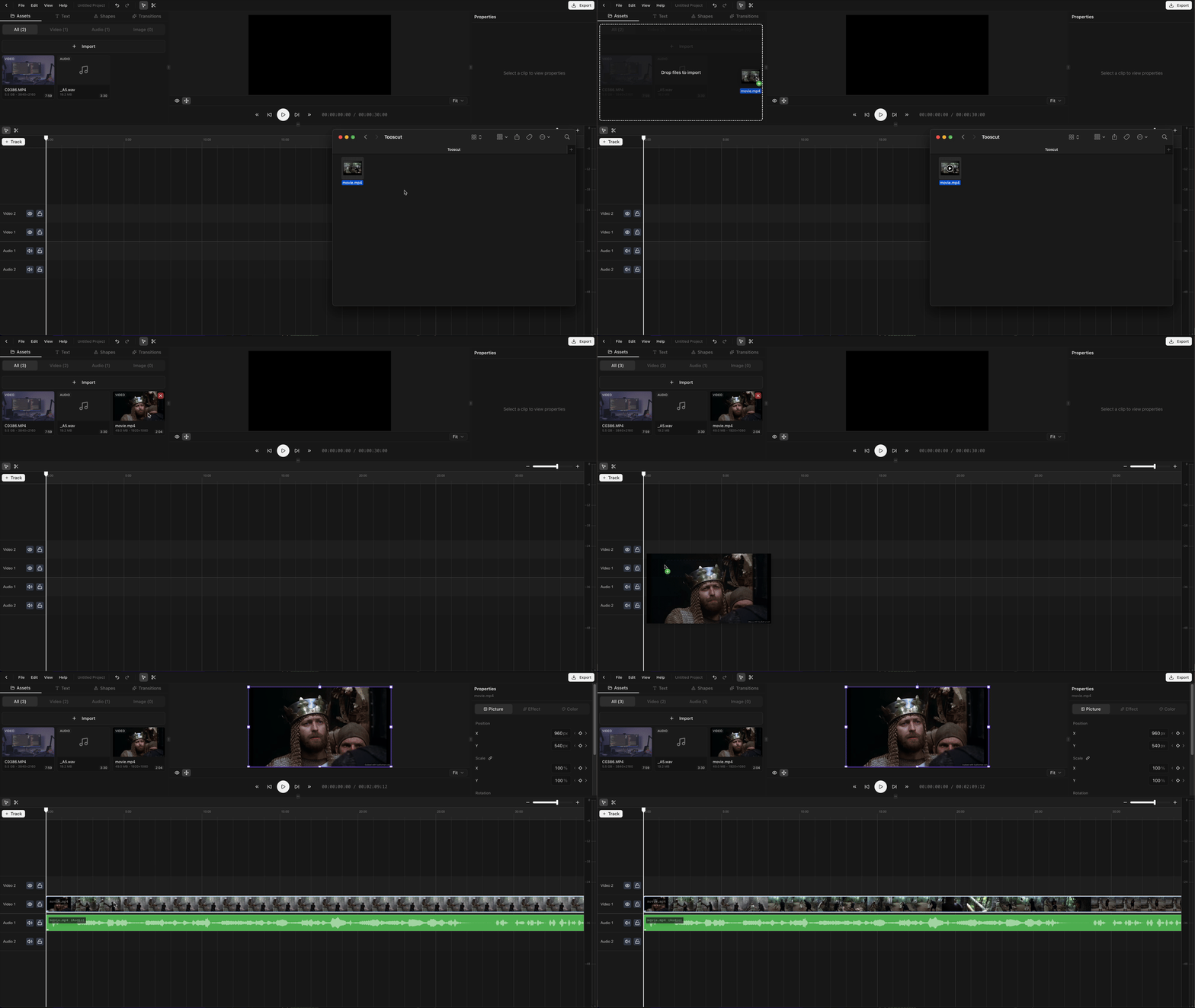
Or drag directly from your file explorer onto the timeline.
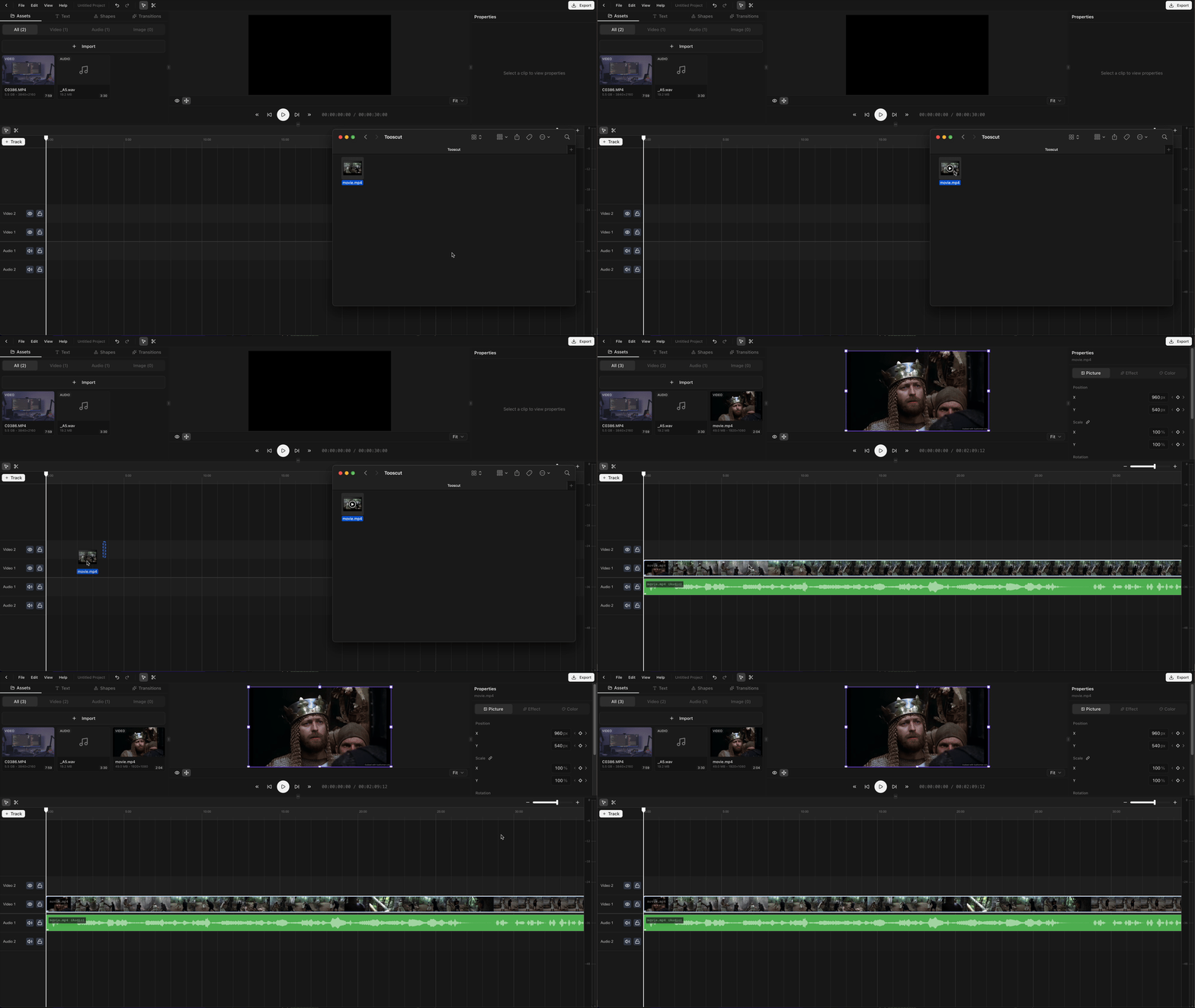
Video files with audio create a linked pair (video clip + audio clip) that move and edit together. See Multi-Track Editing for details.
LUT files
.cube LUT files import like any other asset. Reference them from a LUT node in the color grading graph.